

Templi AI blocks
A template is ordinary text plus a handful of AI blocks that tell Templi what to write, leave out, repeat or bring in for each client. Every block can be added by asking Templi in chat or from the editor, and every block is listed in the Blueprint panel so you can see at a glance what a template will do.
The blocks
Prompts write a paragraph from the client's details. Highlight an instruction and convert it.
Hide a section leaves a heading and everything under it out of the report when a condition is true.
Repeat a section writes a heading and everything under it once for each pension, policy or fund.
Copy Paste Section brings in wording from another template or an attached file, always the latest version.
Copy Paste Image finds a chart or picture in the attached files and places it in the report.
Dropdowns hold a fixed set of options, and Templi can pick the right one per client.
AI tables are filled from the client's details, one row per item or a fixed layout, as you describe.
Add a block from the editor
Prompts, hide rules and repeats start from existing content: highlight text or click a heading and choose the action from the menu that appears. The other blocks are inserted from the toolbar.
Place the cursor where the block should go.
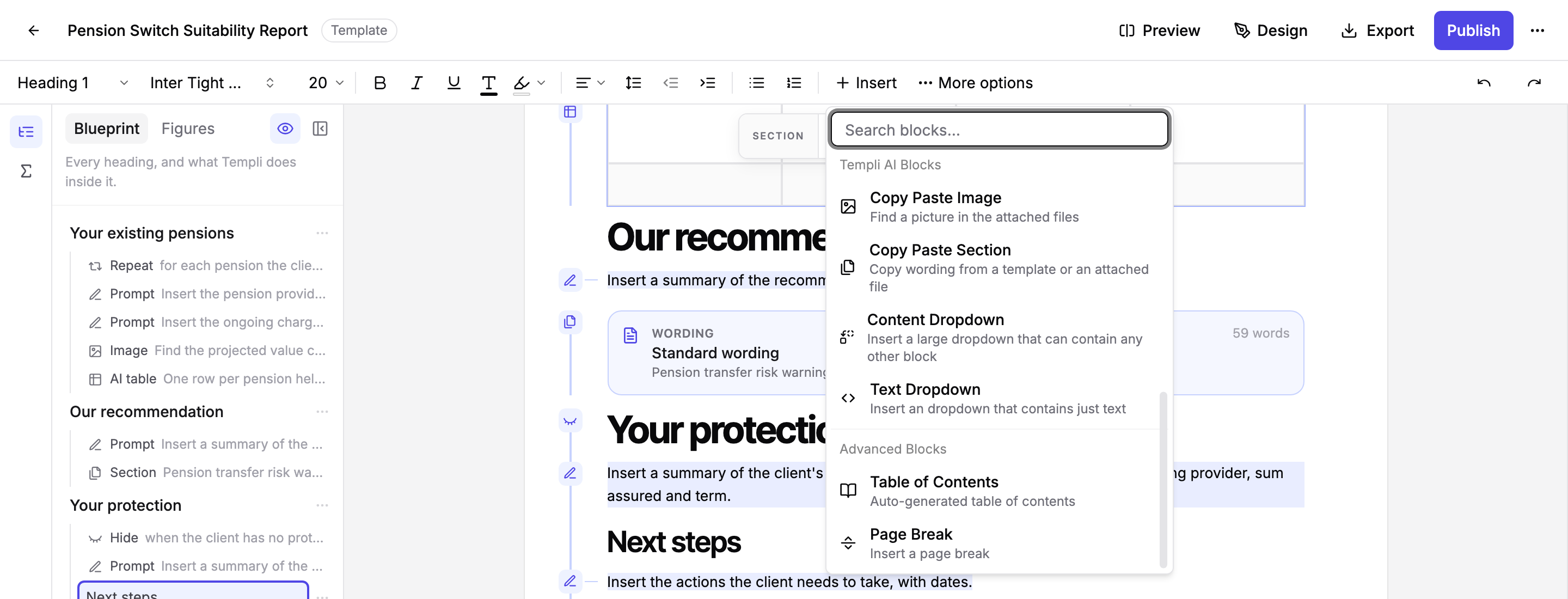
Click Insert and scroll to Templi AI Blocks, or start typing the block name in the search box.
Choose the block. Its editor opens so you can fill in the details.
Add blocks by asking
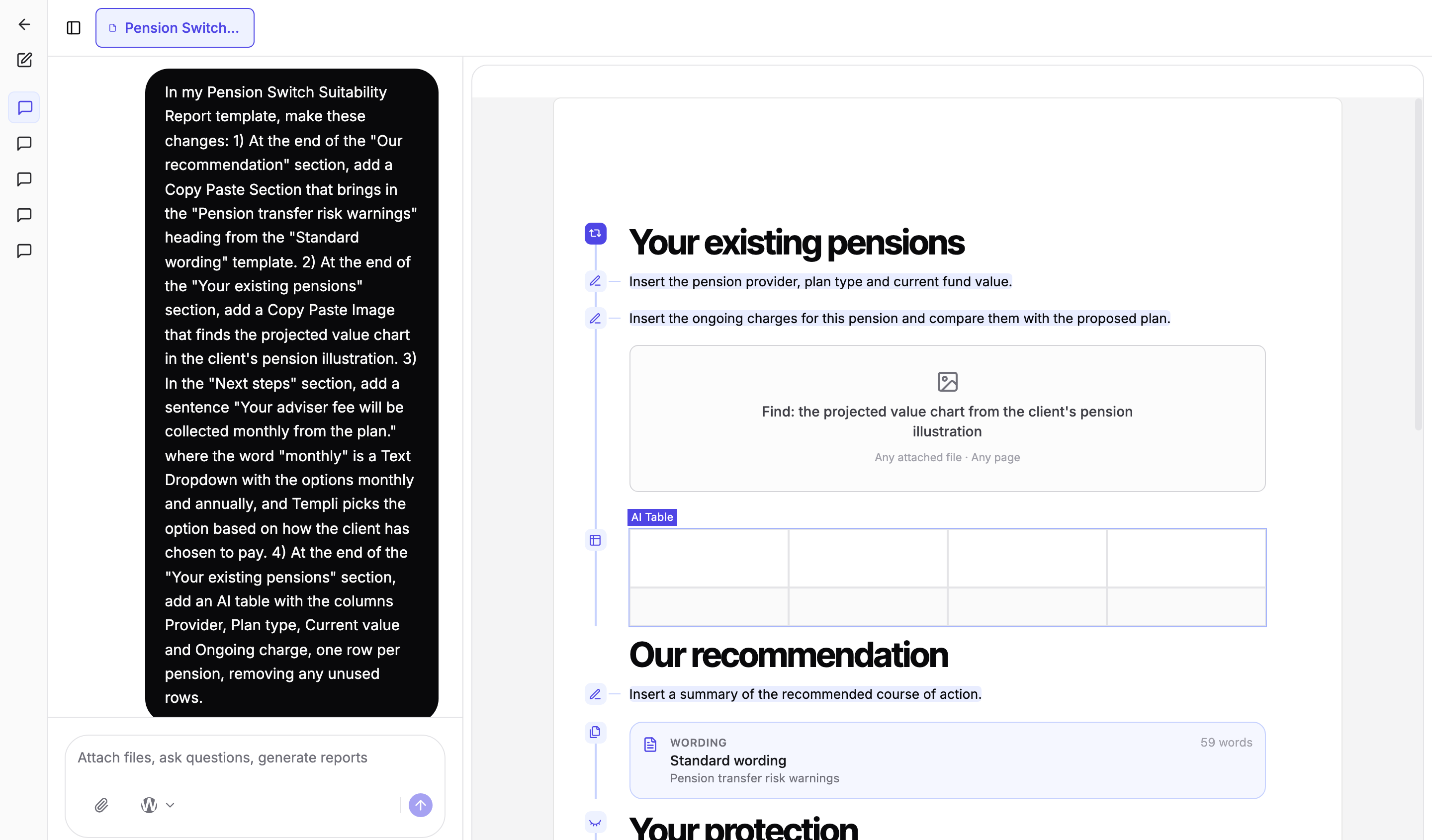
Describe the change in chat, naming the template and the heading. One request can add several blocks at once, and Templi opens the template beside the chat so you can watch the changes land.
For advice on which block to reach for, and how to write each one so it generates well first time, read Template best practices.