

Repeat a section
Write a section once and Templi writes it out once for every pension, policy, fund or provider the client actually has. You can ask Templi to set this up for you in chat, or set it up yourself in the template. Either way, the template stays short and the finished report covers everything.
Ask Templi to set it up
The quickest route is to tell Templi what you want in plain words. Name the template and the section, and say what it should repeat for.
Open a new chat.
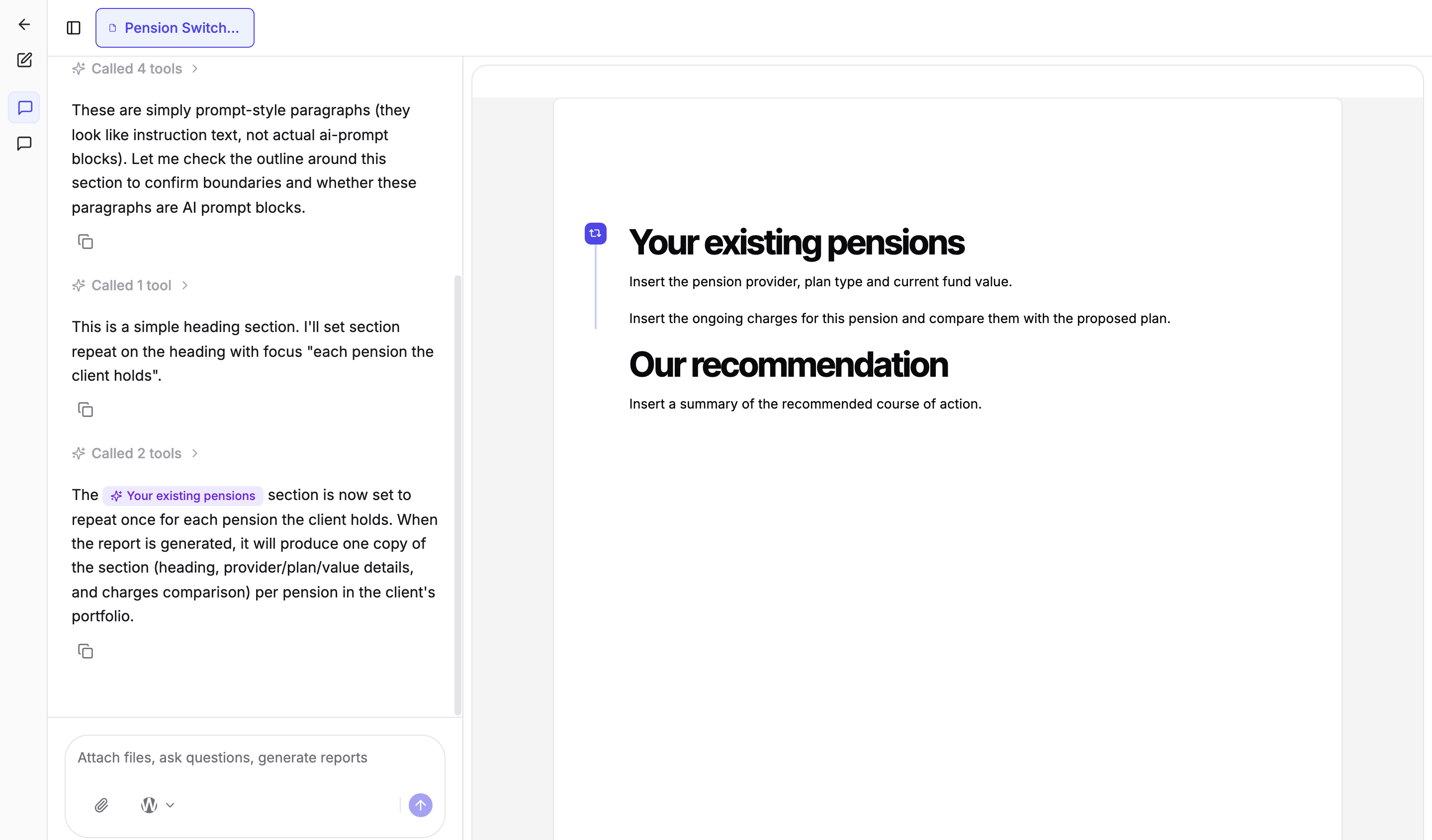
Type your request, for example: In my Pension Switch Suitability Report template, repeat the "Your existing pensions" section once for each pension the client holds.
Send it. Templi opens the template next to the chat, finds the section and sets the repeat.
Check the section in the template. It now carries a repeat marker in the margin, and the Blueprint shows what it repeats for.
Other requests that work the same way:
Repeat the "Plan details" section for each protection policy the client has.
Repeat "Fund performance" for each fund in the client's portfolio.
Repeat the "Existing investments" section for each ISA and GIA the client holds.
Set it up yourself in the template
A section is a heading and everything below it, down to the next heading of the same level or higher. Sub-headings underneath are part of the section, so give the content you want repeated its own heading first.
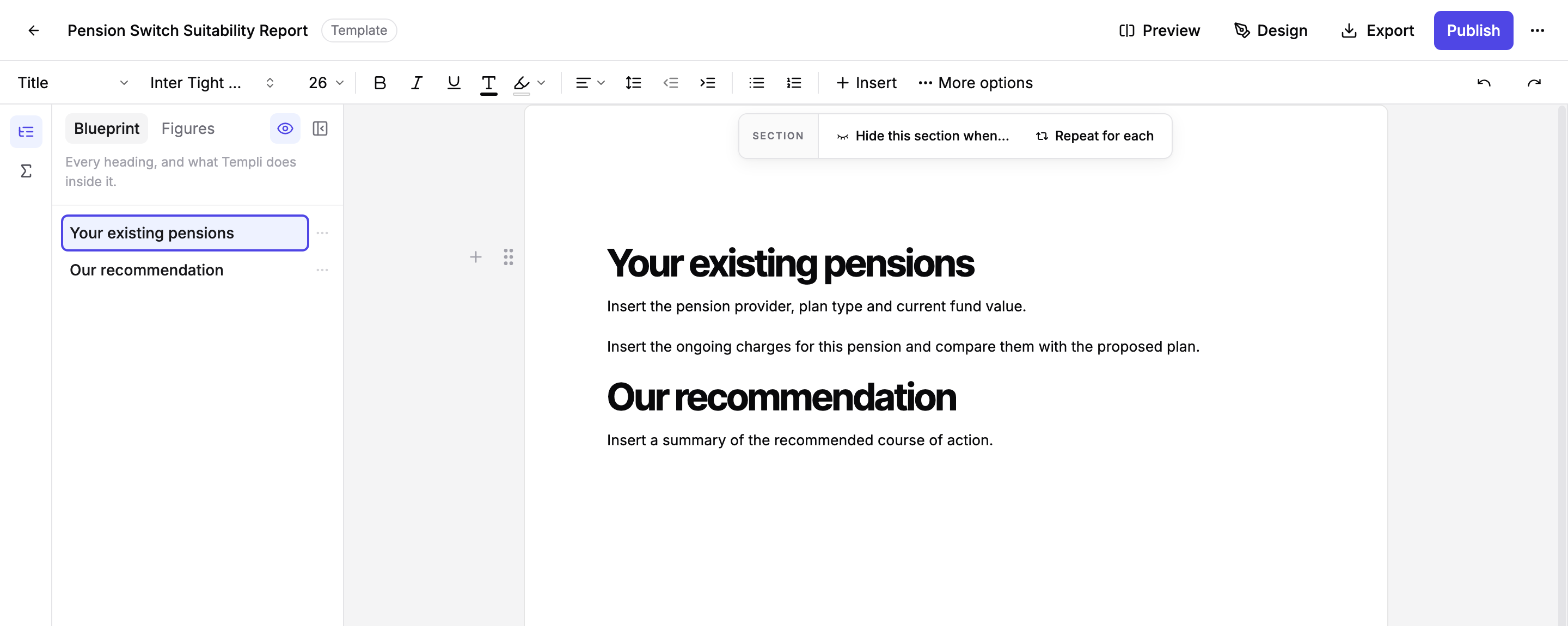
Open the template and click the section heading. A menu appears above it.
Click Repeat for each.
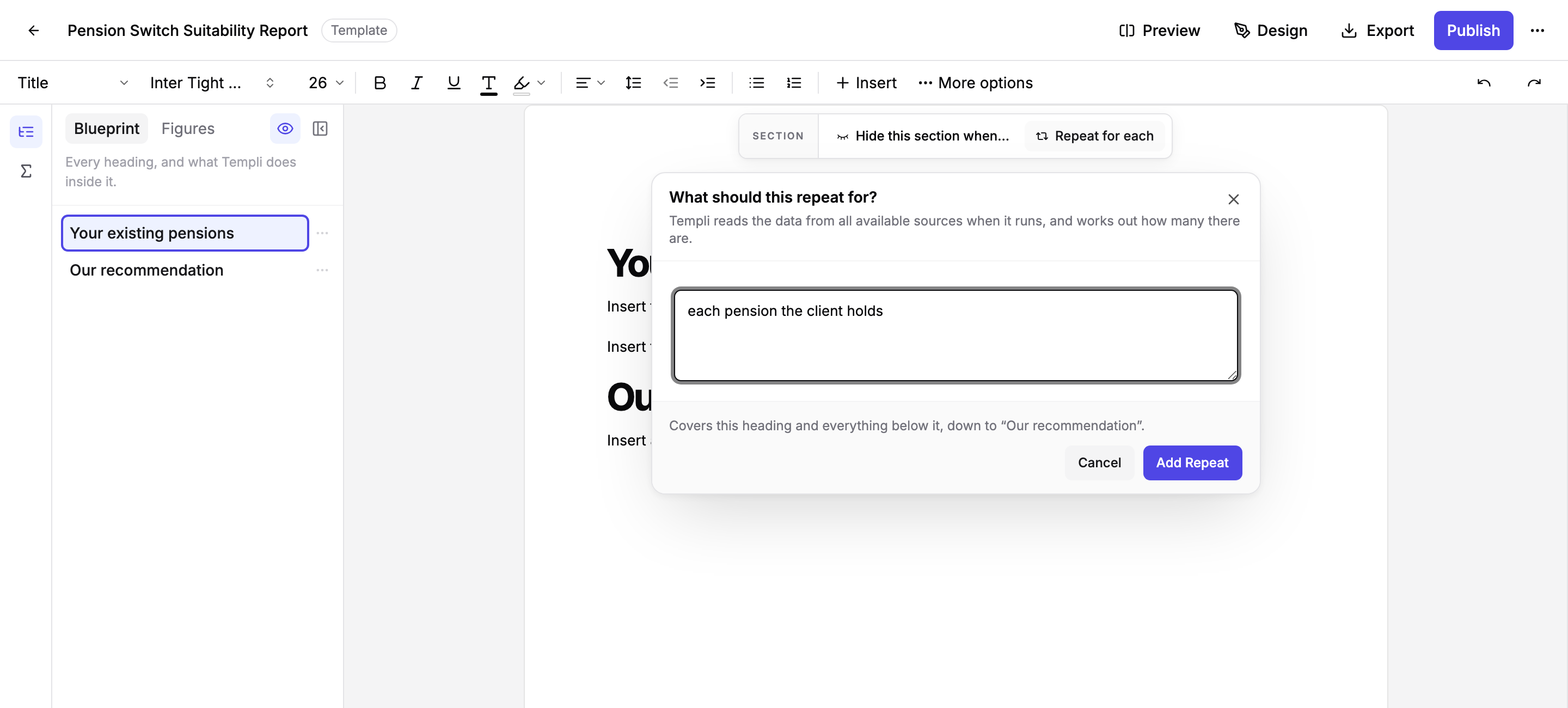
Describe what the section should repeat for, in the same words you would use with a colleague, for example each pension the client holds.
Click Add Repeat.
The footer of the editor tells you exactly where the section ends, so you can see what will be repeated before you save.
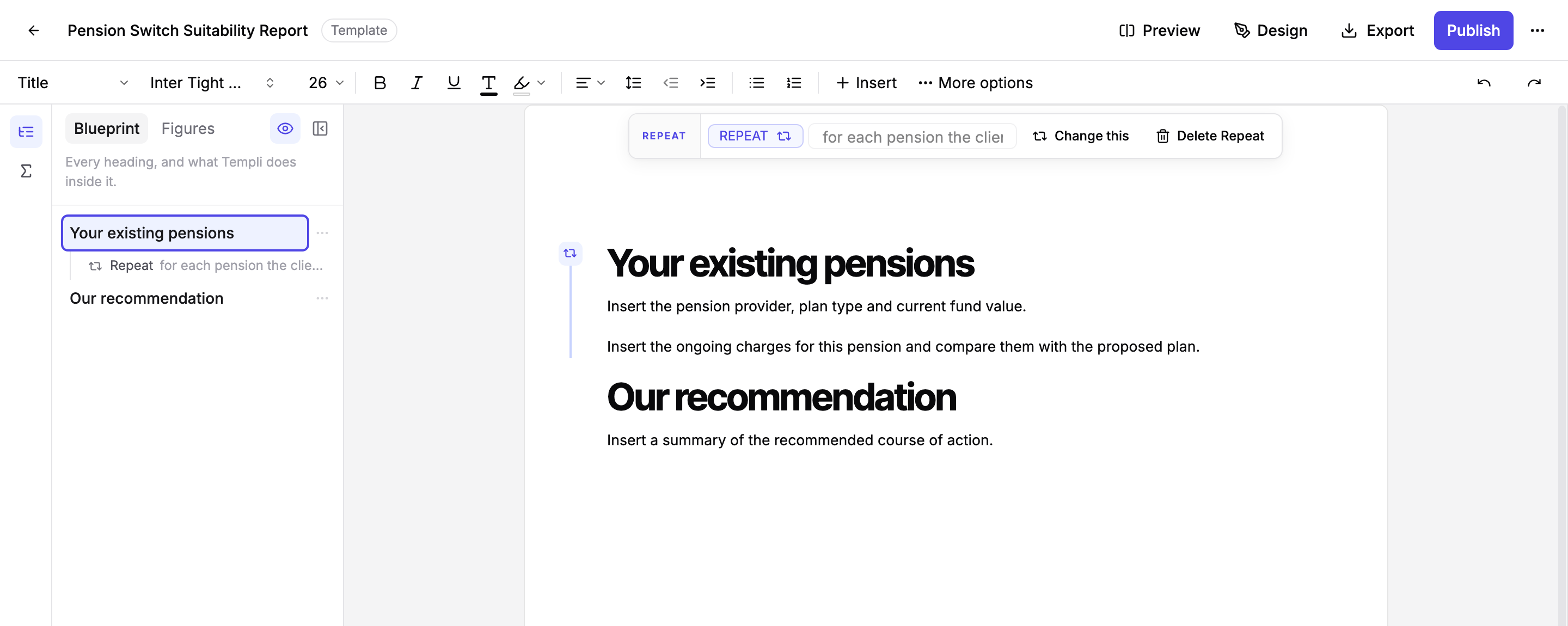
Once saved, the heading shows a repeat marker in the margin and the Blueprint on the left lists the repeat under the heading.
You can also repeat a smaller piece of content without a heading. Highlight the text, click Repeat for each in the menu that appears, and describe what it should repeat for.
What happens when you generate a report
Templi reads the client's data from every source it has, works out how many pensions (or policies, or funds) there are, and writes one copy of the section for each.
Every instruction inside the section is rewritten for that copy. "Insert the pension provider, plan type and current fund value" becomes the AJ Bell details in the first copy and the Aviva details in the second, without you writing either provider into the template.
If Templi cannot work out what to repeat for, the section is flagged in red with a short message so you can fix it before the report goes out. Hover the block in the generated report to see what Templi repeated over and how it filled each copy.
Change or remove a repeat
Click the heading and use Change this to reword what it repeats for, or Delete Repeat to turn it back into a normal section. The content stays where it is. You can also ask Templi in chat to change or remove it, or use the section menu in the Blueprint.
Limits
A repeated section cannot contain another repeated section.
A section can repeat or be hidden, not both. To leave something out of a repeated section, hide the content inside it instead.
Content above the first heading in a template cannot be repeated as a section. Highlight it and repeat it as content instead.
If you add a new heading of the same level or higher inside a repeated section, the repeat now ends at that new heading.
The template editor does not preview the repeated copies, because a template has no client data. Generate a report to see them.