

Copy Paste Image
A Copy Paste Image block finds a picture in the files attached to a client's meeting and places it in the report. Describe what you want, such as the projected value chart from a pension illustration, and Templi cuts it out of the right page when the report is generated. It works on any picture on a page, not only ones saved as separate images.
Ask Templi to set it up
Open a new chat.
Type your request, for example: At the end of the "Your existing pensions" section of my Pension Switch Suitability Report, add a Copy Paste Image that finds the projected value chart in the client's pension illustration.
Send it. Templi adds the block with your description filled in.
Other requests that work the same way:
Add a Copy Paste Image under "Fund performance" that finds the performance chart in the fund factsheet.
Add a Copy Paste Image in "Your protection" that finds the premium table on page 2 of the protection quote.
Set it up yourself in the template
Place the cursor where the picture should go and click Insert in the toolbar.
Choose Copy Paste Image under Templi AI Blocks.
In What to find, describe the picture the way you would to a colleague, for example the projected value chart from the client's pension illustration.
If the meeting has several files, narrow the search with Filename contains, for example illustration. Templi matches loosely, so it still works when the client's file is named slightly differently.
If you know the page, set Page. Leave it on Any page otherwise.
Click Save.
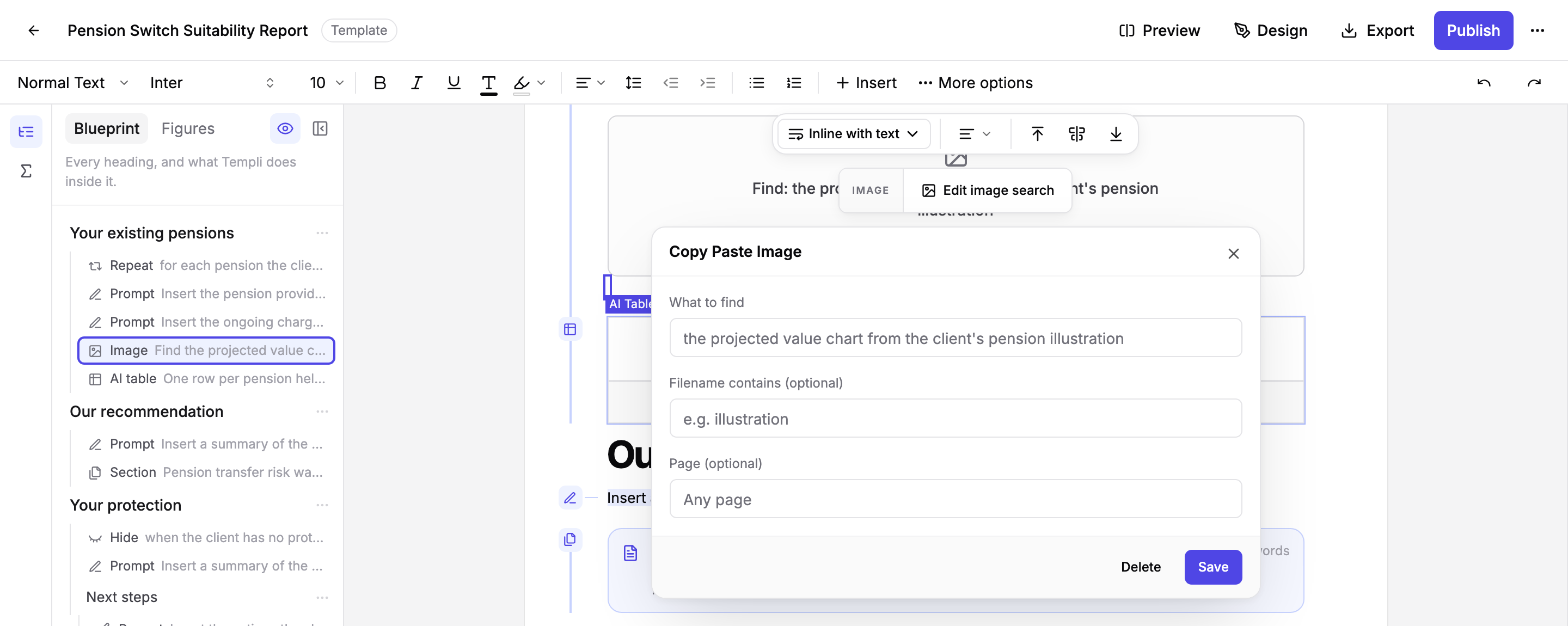
The block sits in the template as a placeholder showing your description. Drag its corners to set the size and use the image menu to choose how it sits with the text. The picture Templi finds is fitted to that size.
What happens when you generate a report
Templi reads the attached files, finds the page that matches your description, and cuts the picture out of it. If several pictures could match, the best one is shown first and you can flick through the others on the block and keep the one you want. If nothing matches, the block is flagged in red with a short message so you can add the picture yourself or attach the missing file.
Hover the picture in the generated report to see which file and page it came from. When you export to Word, the picture is embedded as a real image.
Inside a repeated section, the picture is found separately for each copy, so "the projected value chart" becomes the AJ Bell chart in the AJ Bell copy and the Aviva chart in the Aviva copy.
Change or remove the block
Click the placeholder and choose Edit image search to change the description, file or page, or Delete in the editor to remove it. The block is listed as an Image in the Blueprint panel.