

AI tables
An AI table is a table in the template that Templi fills from the client's details when the report is generated: one row per pension with its provider, value and charges, a comparison of existing and recommended plans, or a list of policies. You design the columns and the look; Templi supplies the rows.
Ask Templi to add one
Open a new chat.
Describe the columns and the rows, for example: At the end of the "Your existing pensions" section of my Pension Switch Suitability Report, add an AI table with the columns Provider, Plan type, Current value and Ongoing charge, one row per pension, removing any unused rows.
Send it. Templi inserts the table with the header row filled in and the description saved.
Set one up yourself
Click Insert in the toolbar and choose Table, then type the column names into the header row.
Click in the table and choose Convert to AI table from the table menu.
In Table description, say what each row is and what goes in each column.
Click Done.
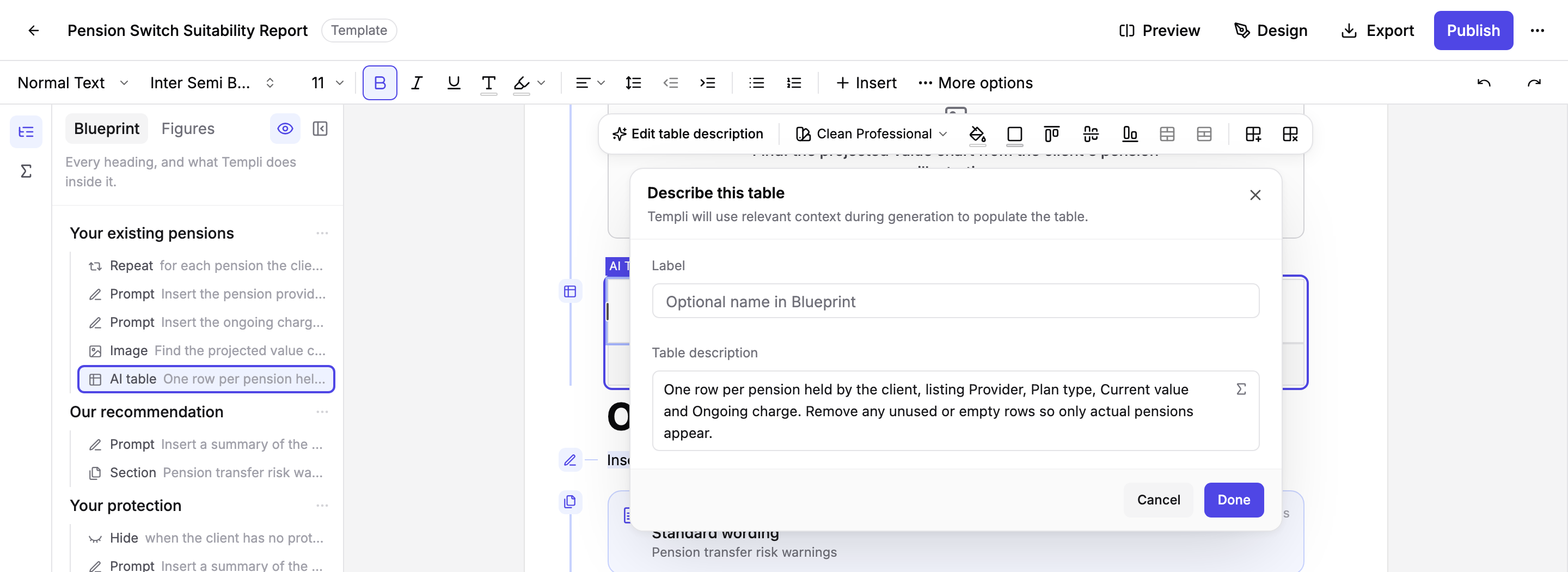
The table gets an AI Table badge in the template and a marker in the margin. Pick a table style from the table menu, such as Clean Professional, and the filled rows follow it. The Label field names the table in the Blueprint panel.
Say what to do with the rows
Templi cannot tell whether the rows in your template are a fixed layout or a sample. If the description does not say, unused rows can come out blank. Put one of these in every description:
One row per item: "One row for each pension the client holds. Remove any rows that are not needed."
Fixed layout: "Keep exactly these three rows: existing plan, recommended plan, difference. Write N/A where a value does not apply."
Describe the columns too, including units and where the figure comes from: "Ongoing charge as a percentage a year, from the illustration or the fund factsheet."
What happens when you generate a report
Templi reads the client's details and fills the table row by row according to the description. Inside a repeated section, the table is filled separately for each copy. Hover the table in the generated report to see where the figures came from.
Change or remove an AI table
Click in the table and choose Edit table description to change what Templi fills in, or Turn into normal table to keep the table but stop Templi filling it. You can also ask Templi in chat to change the columns or the description.