

Valuations
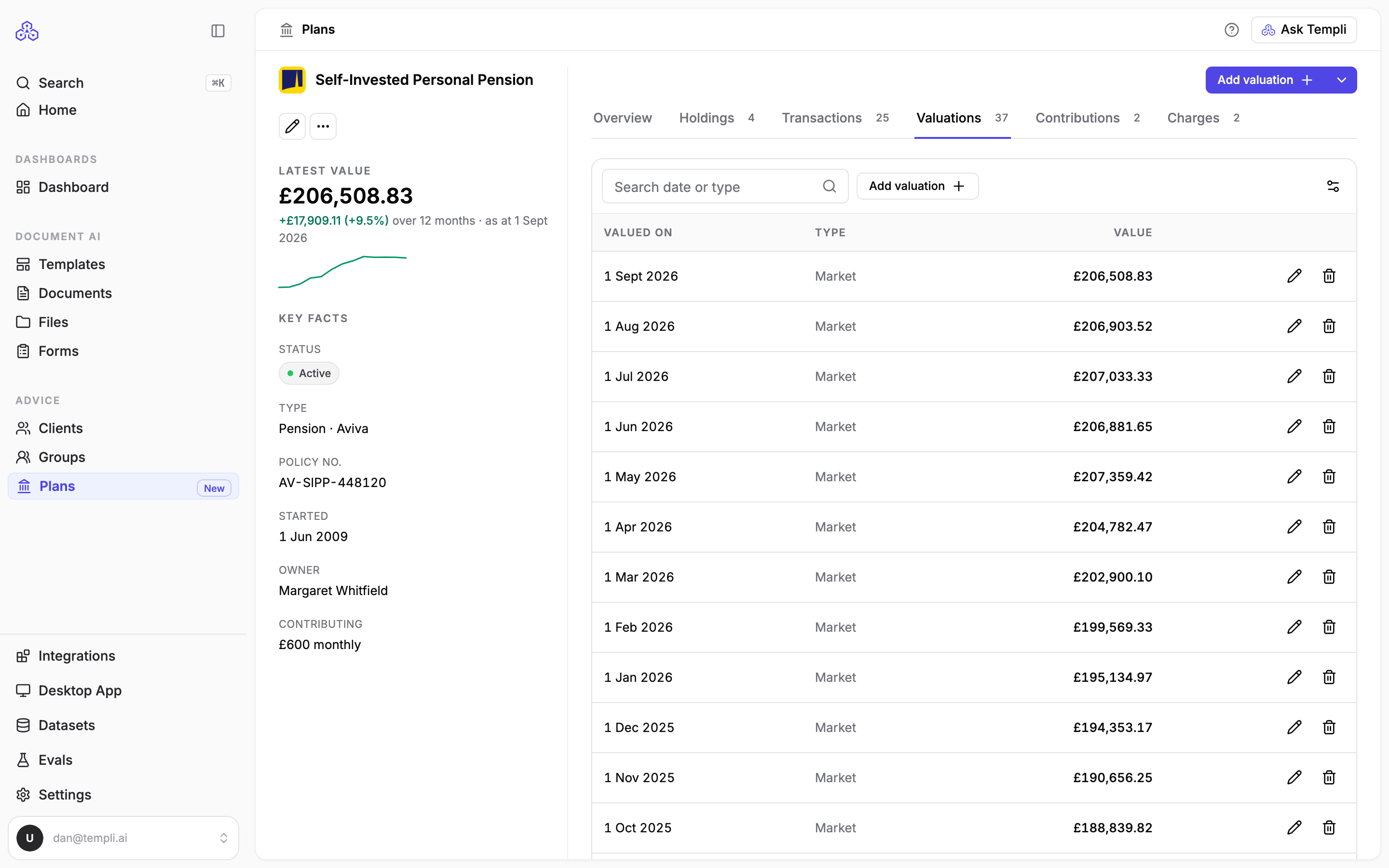
A valuation records what a plan was worth on a given date. The latest one sets the plan's value, and the history builds the 12-month trend you see on the plan and on Library > Plans.
Where to find it
Valuations are a tab on each plan's page, at https://app.templi.ai/plans/<plan>/valuations. To get there, open the client, click their Plans tab, click the plan, then click Valuations. You can also start from Library > Plans. The plan's latest value shows on the right of every tab under Latest value. See Plans for the rest of the plan's page.
See a plan's valuations
Open the plan and click the Valuations tab. Each row shows the date, the type of valuation and the value, newest first. Search by date or type, or show one type of valuation with the type filter.
Which valuation sets the plan's value
The plan's value is its newest Market, Fund, Estimated or Other valuation. A Surrender or Transfer value is what the plan would pay out if it were cashed in or moved, so Templi only uses one of those when the plan has no other valuation.
A valuation dated in the future does not set the plan's value until that date arrives.
When a provider quotes a transfer value lower than the fund value, record both. The plan keeps showing the market value, and the transfer value stays on file for the transfer advice.
Ask Templi to record a valuation
Open Ask Templi and type, for example, Record a market valuation of £206,508.83 on Sarah Winters' SIPP as at 1 September 2026, or attach the provider statement and ask Add the valuation from this statement to Sarah's ISA.
Add a valuation yourself
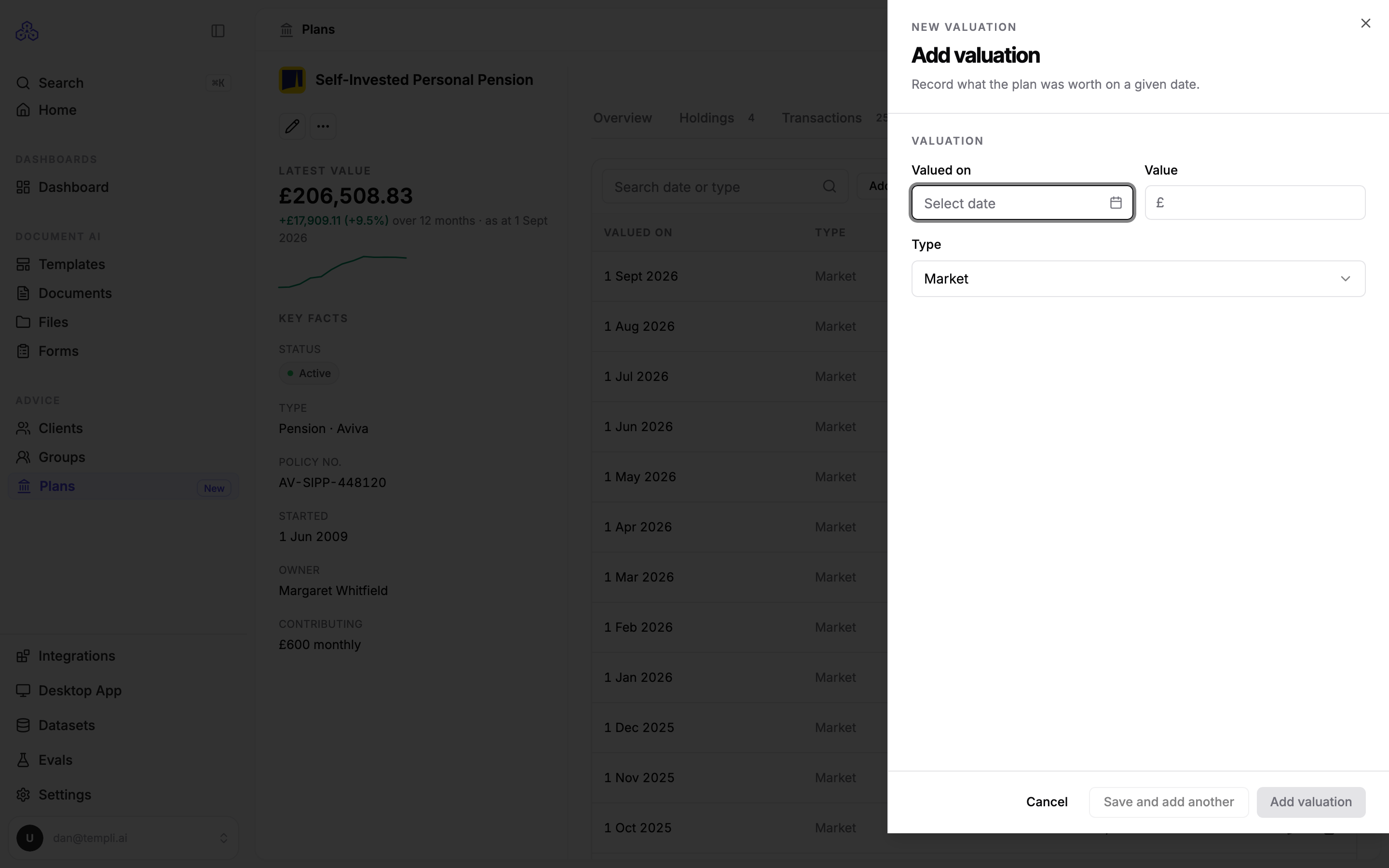
On the Valuations tab, click Add valuation.
Set Valued on to the date on the statement.
Enter the Value.
Choose the Type. Market is the usual choice.
Click Add valuation.
To correct or remove a valuation, use the buttons on its row. Removing the newest valuation sets the plan's value back to the one before it.
Keep valuations up to date
On Library > Plans, a plan counts as needing a valuation when it has none from the last six months. The line above the list says how many need one, and each one's Last valued date turns amber. On a client's Plans tab, a valuation turns amber once it is more than a year old. Importing from your back-office system again brings in the latest valuations it holds.