

Templi could not open the file as a Word document. Check that it opens in Word, that it is a .docx under 10 MB, and that it is not password protected, then import it again.
Import your templates
Bring the Word templates you already use into Templi with Import on the Templates tab, or by attaching them in Ask Templi. Templi imports several files at once and tags the parts that change for each client in the background, so you can carry on working while it runs. If you are new to templates in Templi, start with How templates work.
Where to find it
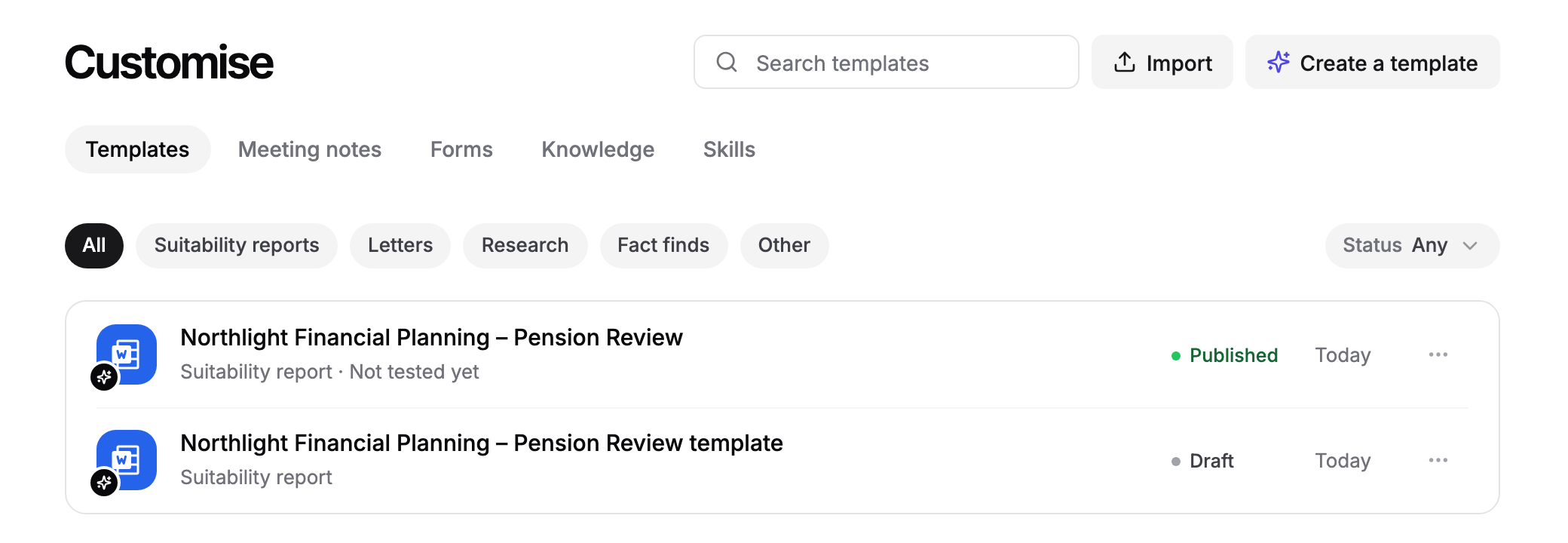
Go to Customise > Templates in the sidebar, at https://app.templi.ai/templates, and click Import.
Before you start
Templates must be Word files (.docx), up to 10 MB each. If a template is an older .doc file, open it in Word and save it as .docx first.
Gather the templates your advisers use most, such as your suitability reports, annual review letters and protection recommendations. You can import them all in one go.
Note how your firm marks up its templates, for example highlighted text for client details or red text for guidance to the adviser. Telling Templi gets the tagging right first time.
Import from the Templates tab
Click Import.
Drop your files on Drop your Word templates, or click choose files.
Optionally, describe your mark-up under How are they marked up?. For example: "Red text is guidance for the adviser, and anything in double square brackets is client data."
Click Import template, or Import 3 templates when you add three files.
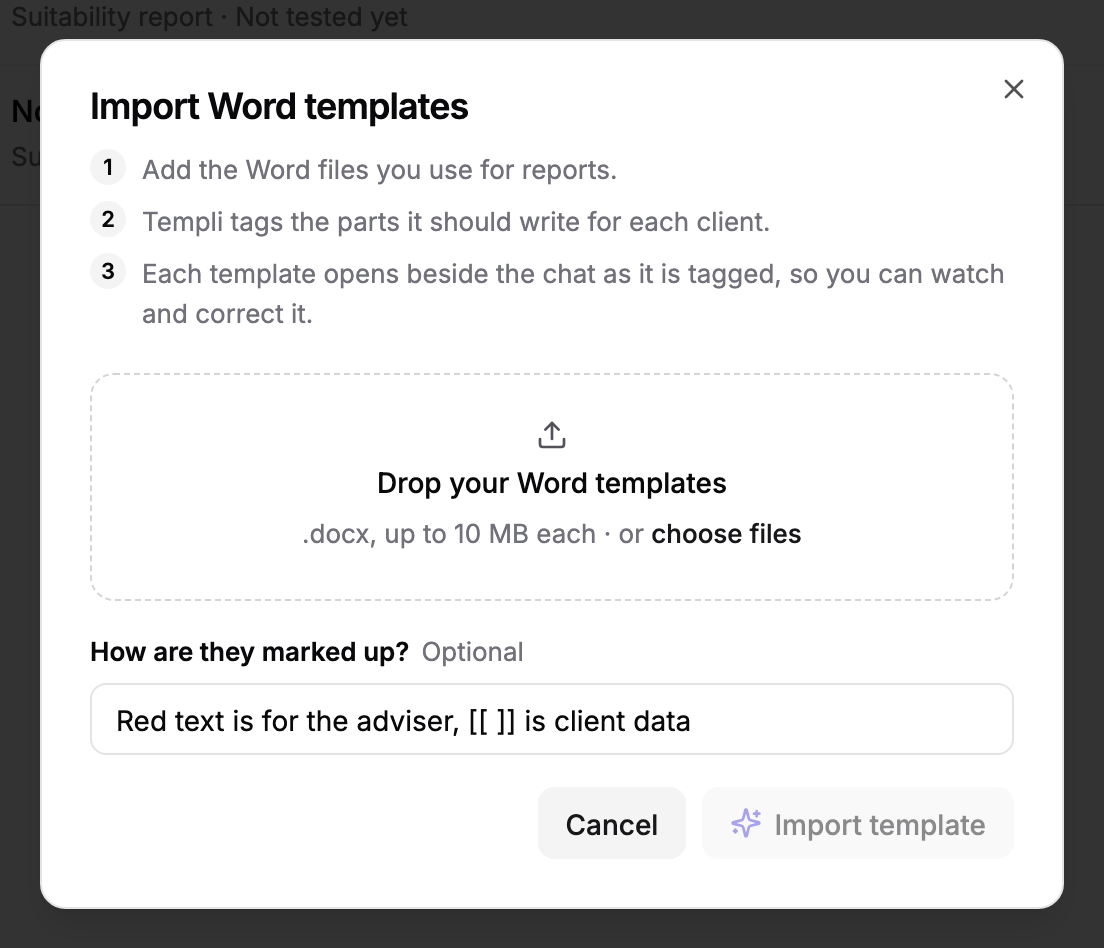
The first template opens beside its import chat, so you can watch Templi tag it and correct it as it goes. Each file becomes a draft template.
The mark-up note is the best way to get the tagging right first time. Templi follows your description over its own reading of a colour or highlight.
Import from Ask Templi
Use Ask Templi when your templates are already attached to a chat, or when you want to import many at once without opening the Templates tab.
Open Ask Templi and attach one or more Word files.
Ask Templi to import them, and say how they are marked up. For example: "Import these as Word templates. Text in square brackets and the placeholder dates and names are filled in for each client."
Templi starts the import and shows its progress in the chat. Ask "How is the import going?" at any time for an update.
What Templi does with each file
Templi reads the guidance your firm left in the file, such as highlighting, coloured text, placeholders like [Client name], notes to advisers and Word comments. It tags those parts as AI blocks, removes the guidance so it never reaches a client, then checks the result.
On the Templates tab, the line under the template's name shows where the import has got to:
Reading the document, Marking up the parts that change and Checking the markup while it works.
Templi needs an answer when it has a question about your template. Open the template and reply in its chat.
Not tested yet once the import has finished. The template is a draft, ready for you to check.
The status beside it reads Queued, Tagging, Needs you or Ready to review, and Import failed if Templi could not finish.
On the Free plan
The Free plan includes one template. If you choose more files than you have room for, Templi asks you to remove the extra files before you can import. To import more, upgrade from the prompt, or ask your billing manager to.
Next steps
Check the tags in Edit a Word template.
Test the template on a past case with Tuning.
Publish it, then generate a report.
Troubleshooting
The template says Import failed or Could not read the file
Templi tagged too much or too little
Open the template and tell Templi in its chat, for example "Only tag the yellow highlighted text", or ask it to re-tag the whole template with a clearer description of your mark-up. You can also select text on the page and ask Templi to tag it.
Was this helpful?
Was this helpful?